Local statement review

Statements in.
Rows to review.

Review normal, scanned and mixed PDFs locally. Check the source, reconcile the figures, then export your working rows.

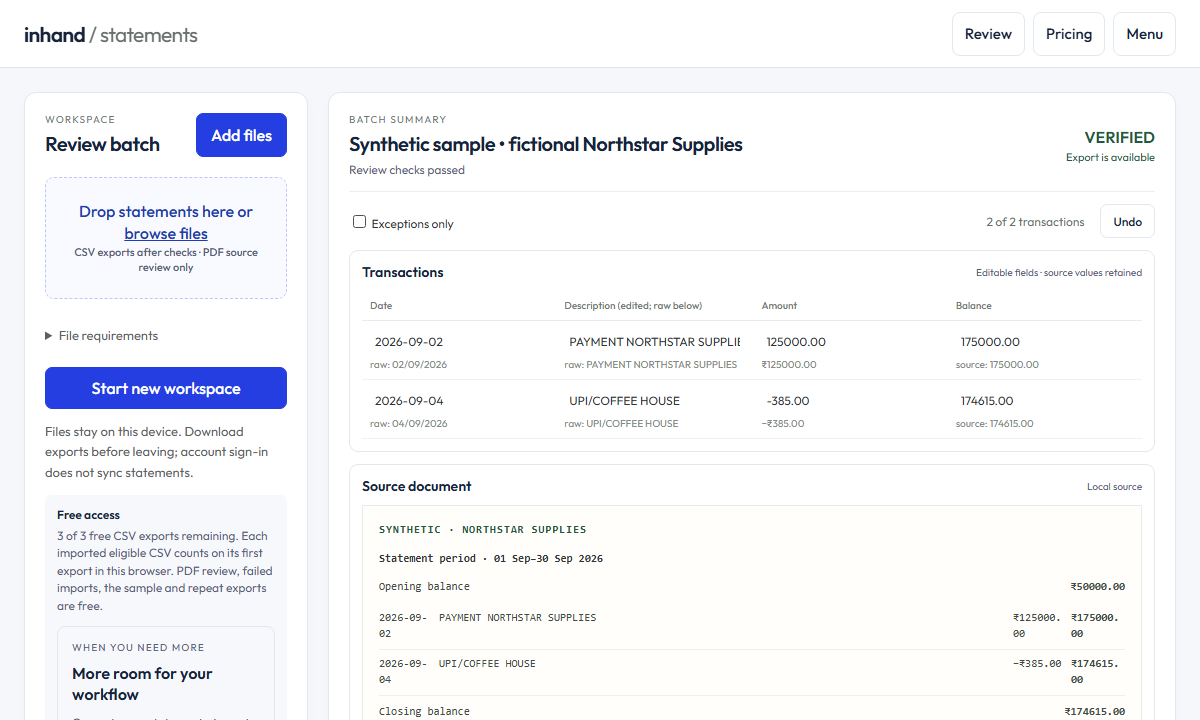
Actual Statement Studio interface showing fictional sample source rows and editable transactions
Actual Studio interface with fictional sample data.

Your files stay in your browser.

Local processing. No statement uploads, advertising scripts or session replay in Studio.

Read the privacy details

Start without an account.

3 first eligible statement exports free per browser. The fictional sample stays free. No card required.

See free use and planned pricing

From source file
to a checked working table.

Keep the original beside you. Studio makes assumptions and unresolved issues visible.

  1. Bring in a statement

    Open a normal, scanned or mixed PDF for review, or import a CSV and map its columns.

  2. Review what matters

    Compare source rows, correct working values and investigate dates, signs and balance notices.

  3. Export when eligible

    Export CSV, QuickBooks CSV, QIF or prepare Tally XML. PDFs need explicit source review and exact reconciliation; CSVs must pass all checks.

Read the full workflow

Useful checks.
Clear boundaries.

Know what you can do with a file before bringing it into your workflow.

Normal, scanned or mixed PDF

Export after source review

  • Preview proposed transaction rows
  • Inspect source lines and balance notices
  • Correct the working table for review

View every page, count and confirm source rows, check the summary and reconcile exactly. Printed English scans use local OCR; correct any recognition errors.

CSV statement

Export after all checks pass

  • Map columns and classify source rows
  • Check dates, currency and source balances
  • Export eligible CSV, QuickBooks CSV or QIF

A statement period, opening and closing balances, and exact reconciliation are required.

A matching total is a check, not a guarantee.

Possible duplicates stay included. Uncertain rows stay visible. Compare every export with its source and the destination import preview.

Understand the balance checks

A clearer next step
for your accounting workflow.

Use the guides to review source data and prepare the format your destination expects.

Before you open Studio.

Does it work with every bank statement?

No. PDF exports need every page, row count, transaction and summary checked against the source, with exact reconciliation. Unresolved content remains blocked. CSV exports require a period, mapped opening and closing balances, classified rows, valid dates and currency, and exact reconciliation. Printed English scans use local OCR. Handwriting and native XLSX files are not supported.

How does the free use work?

Each browser gets three first exports of imported documents when they are eligible CSVs that pass checks or PDFs that complete source review and exact reconciliation. The fictional sample and additional formats are free. Repeat exports of the same imported document are free when it is an eligible statement. Importing again creates a new document that counts on its first eligible export. Source review and failed imports do not consume an export. Clearing Studio browser storage can reset the counter. Paid activation and checkout are currently off.

Does InHand receive my statement?

Studio processes selected statement files locally in your browser. Statement contents and financial fields are not sent to InHand telemetry. See the privacy notice for website request metadata, optional local saving and separate account services.

How much does Professional cost?

View your available plans on the account page. It uses your approximate country to show relevant pricing; confirm your billing country before continuing. Paid activation and checkout are off. Existing trials already granted remain honored; new accounts do not receive an automatic trial.

Get familiar with the review.

Try fictional data first, then bring your own statement when you are ready.

Open Statement Studio